You just ran your tenth stencil of the day. The good ones you upscaled to full resolution for the printer. The client reference, three revisions, the version you actually inked: all of it sitting in your Gallery. Multiply that by a busy week and the storage bar starts creeping toward full.
So you do the thing nobody should have to do. You start deleting old work to make room. Last month's flash. A repeat client's healed piece you might want to pull up again. You're pruning your own archive by hand, in the middle of a shift, just to keep working.
We removed that chore. On Pro and Studio, your storage can now clean up after itself, and the pieces you care about stay exactly where you left them. Here's how it works, and how to make sure your best work is never in the queue.
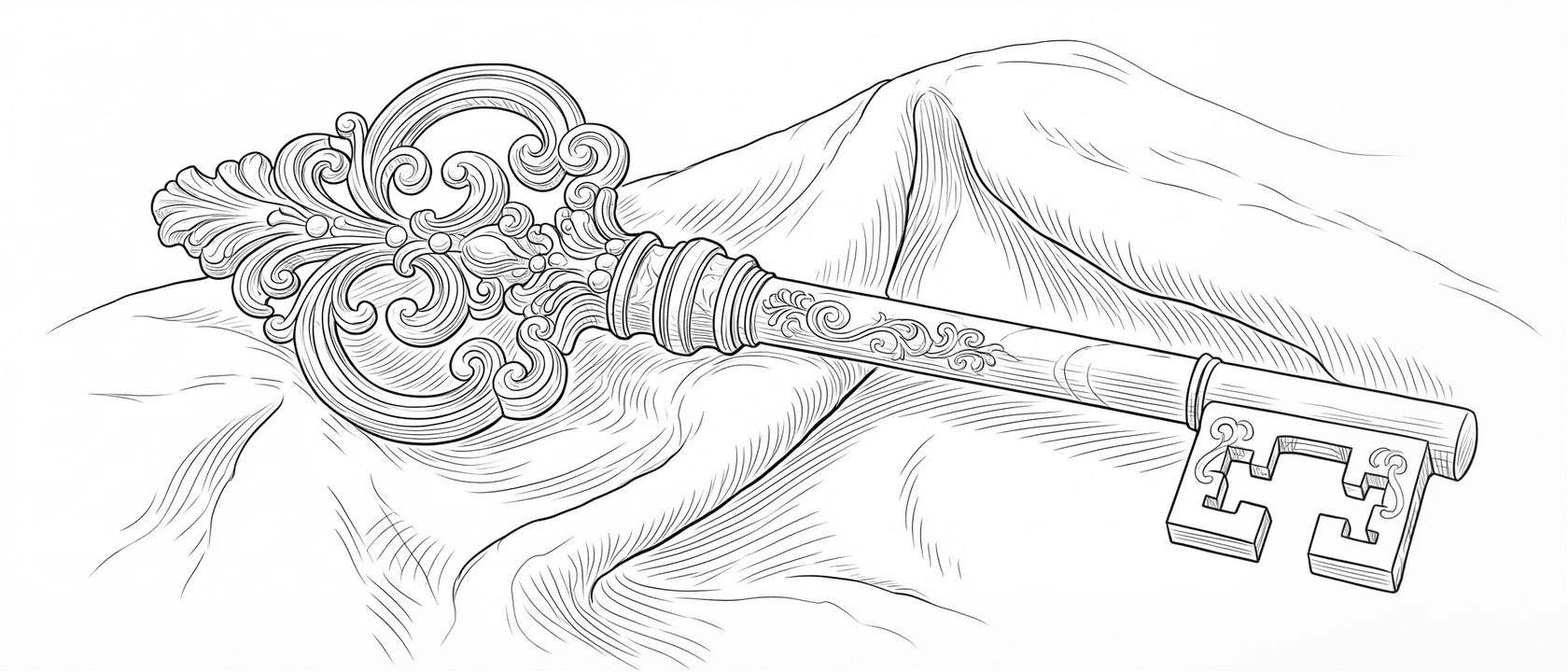
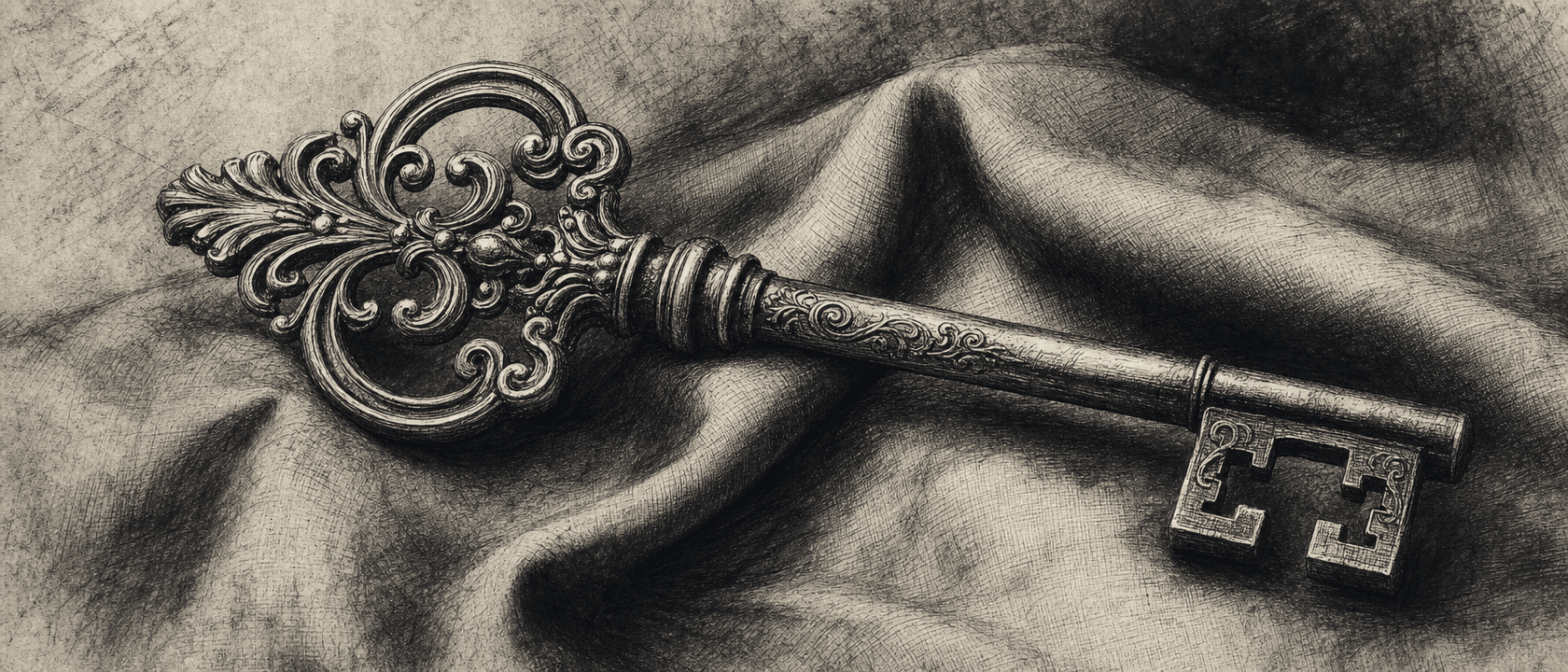
First, a reminder of what you're filling that space with. Drag the handle to watch a reference turn into a transfer-ready stencil.
Why storage fills up at all
Stencils are light. Upscales are not.
When you upscale a winner to full resolution for the printer, you're saving a big, detailed file on purpose, because that's the one going on skin. Upscales are unlimited on Pro and Studio, so the more you lean on that step (and heavy users lean on it hard), the faster the space adds up. A reference, a stencil, and two upscales from a single session is four files, and most of the weight is in the last two.
That's the whole reason storage exists as a number instead of "infinite." It has to live somewhere. The question is who does the tidying.

By default, nothing disappears
First, the reassuring part. Pro keeps 1GB and Studio keeps 5GB, and both hold your work indefinitely. Nothing is deleted automatically. If you never touch a setting, your Gallery just keeps everything until you decide otherwise or reach your ceiling.
Automatic cleanup is a tool you turn on, not a default that runs behind your back. Leave it off and Line Ripper behaves exactly as it always has.
Turn on automatic cleanup
Flip it on and Line Ripper starts keeping headroom for you. Once your storage passes about 80% full, it trims the oldest work first, quietly in the background, until roughly 20% of your space is free again. Your newest stencils are always the last thing standing, so the piece you generated this morning is never at risk to make room for it.

Settings → Storage: flip on Automatic cleanup and Line Ripper keeps about 20% of your space free, trimming the oldest work first. It stays off until you turn it on.
A few things worth knowing, because "automatic deletion" is a phrase that should make you read the fine print:
- It works on whole families. An original, every stencil you made from it, and every upscale of those stencils are treated as one unit. They go together, so you never end up with a stencil pointing at an original that's gone.
- It only ever removes the oldest. No favorites, no recent work, no surprises in the middle of your queue. Cleanup climbs from the bottom of the pile and stops the moment you're back under your target.
- It's yours to switch off. Turn it on when your Gallery is getting full, turn it off when you'd rather manage things yourself.
For a working artist ripping dozens of stencils a week, this is the difference between babysitting a storage bar and never thinking about it again.
Star what you never want to lose
Automatic cleanup is only safe if you can carve out the work that should never be touched. That's what favorites are for.
Tap the star on any piece and it's protected, for good. Not "protected for 30 days." Not "protected until you're really full." Favorited work is simply never in the cleanup queue, even when your storage is maxed out and cleanup is actively trimming everything around it.
And because favorites work on the whole family, starring an original keeps its stencils and its upscales too. Mark the reference you keep coming back to, the flash you re-run for walk-ins, the healed piece a client always asks a friend about, and it stays put while the one-off test prints tidy themselves away. It's the "keep my keepers" switch, and it's on every paid plan.
What this looks like on the free plan
The Starter plan works a little differently, and it's worth being straight about it. Free accounts get 50MB of storage and keep images for 30 days, and that cleanup is automatic and always on. It's enough to try Line Ripper properly and run your hardest piece through it, but it isn't built to be your long-term archive, and favorites aren't part of it.
Keeping everything, upscaling without counting, and starring the work you never want to lose are the reasons to be on Pro or Studio. If you're already there, the housekeeping is now handled. If you're not, this is a good reason to look.
Whatever you generate, keep control over line weight while you're at it. That's still the part that decides whether a stencil prints clean, and it's covered in our guide to line-weight control.